Function Room Booking Report
The Function Room Booking report helps users track details of the function rooms booked for the selected date range.
Perform the following steps to generate the report:
Navigate to Reports ➜ Dynamic Reports ➜ Guests/Reservations ➜ Function Room Booking.
Refer to the following table and fill in the fields.
|
Field |
Description |
|---|---|
|
Report Name |
Function Room Booking. |
|
Start Date |
This is a mandatory field that allows users to select the start date from which reservations must be included in the report. By default, the current property date is selected. Users can select past or future dates in this field. |
|
End Date |
This is a mandatory field that allows users to select the end date up to which reservations must be included in the report. By default, the current property date is selected. Users can select past or future dates in this field. This report can be generated for a maximum duration of 365 days. |
|
Guaranteed Status |
This is an optional multi-select drop-down list that allows users to select from the following statuses of function rooms booked:
|
|
Contract Status |
This is an optional multi-select drop-down list that allows users to select from the following contact statuses of function rooms booked:
|
|
Room Blocks |
This is an optional multi-select drop-down list that allows users to select whether the room blocks must be included in the report or not:
|
Click Run to generate the report.
Click Save to save the report under User Favorites section.
Sample Report
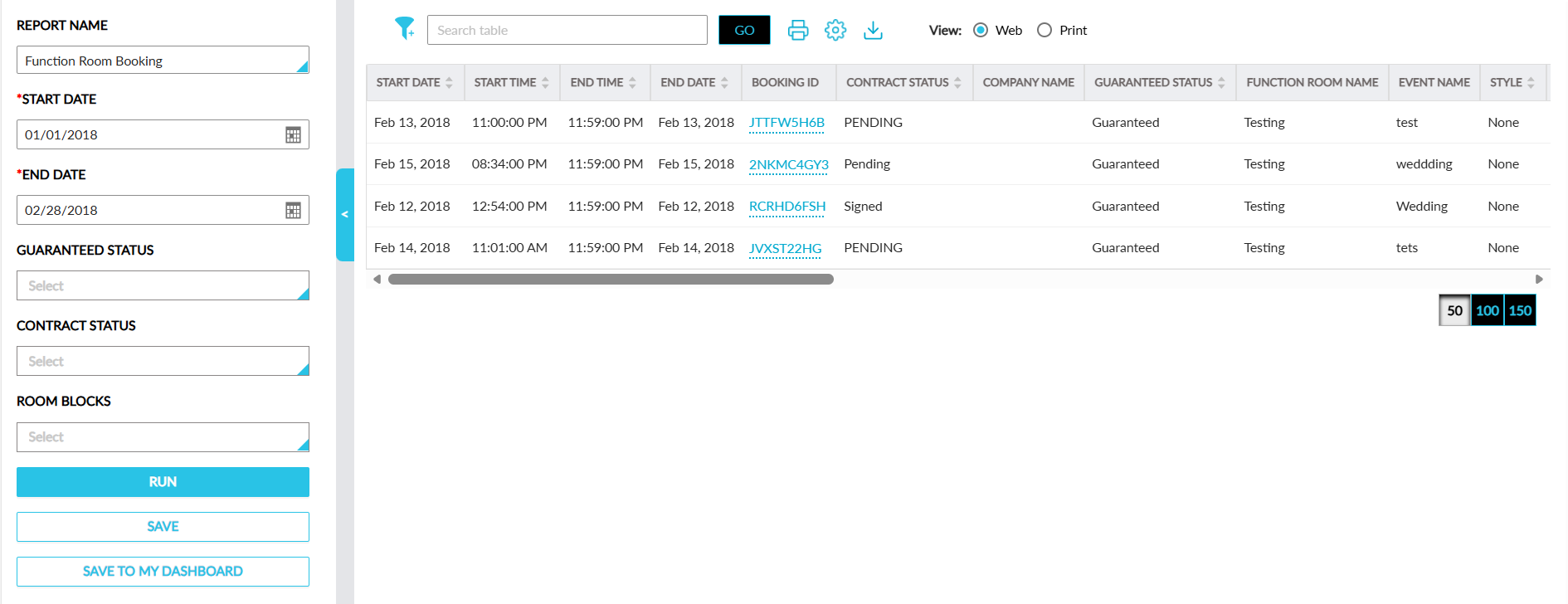
Report Fields
This report displays the following fields:
|
Field |
Description |
|---|---|
|
Start Date |
The start date associated with a function room booking. This column can be sorted. |
|
Start Time |
The start time associated with a function room booking. This column can be sorted. |
|
End Time |
The end time associated with a function room booking. This column can be sorted. |
|
End Date |
The end date associated with a function room booking. This column can be sorted. |
|
Booking ID |
The booking ID associated with a function room booking displayed as a hyperlink. When clicked, users will be navigated to the function room booking screen displayed in a new tab in the browser. |
|
Contract Status |
This column displays the following contract statuses associated with a function room:
This column can be sorted and filtered. |
|
Company Name |
The company A/R account name associated with a function room booking will be displayed. This column can be filtered. |
|
Guaranteed Status |
The following guaranteed statuses associated with a function room booking will be displayed:
This column can be sorted and filtered. |
|
Function Room Name |
The function room name associated with a booking. This column can be filtered. |
|
Event Name |
The event name associated with a booking. |
|
Style |
The style associated with a function room booking. This column can be sorted and filtered. |
|
Number of Guests |
The number of guests associated with a function room booking. This column can be sorted. |
|
Function Room Rate |
The rate of the function room. This column can be sorted. |
|
Function Room Tax |
The tax amount associated with the rate of a function room. This column can be sorted. |
|
Total Function Room Amount |
The sum of the function room rate and its tax. This column can be sorted. |
|
Status |
The following statuses of function rooms are displayed:
This column can be sorted. |
|
Group Name |
The group name associated with a function room booking. This column can be filtered. |
|
Room Blocks |
The following values are displayed:
|
|
F&B Code |
The food codes associated with function room bookings will be displayed. When there are two or more food codes associated with a function room, then all the food codes will be displayed. |
|
F&B Rate |
The total charge associated with food services will be displayed. When there are two food services for a function room booking, then sum of both food services will be displayed. This column can be sorted. |
|
F&B Tax |
The tax amount associated with the food services booked for a function room will be displayed. This column can be sorted. |
|
Total F&B Amount |
The sum of food, service rate, and tax are displayed. This column can be sorted. |
|
A/V Code |
The audio-visual codes associated with function room booking will be displayed. When there are two or more audio-visual codes associated with the function room, then both the audio-visual codes will be displayed. |
|
A/V Rate |
The total charge associated with audio-visual services will be displayed. When there are two or more food services associated with a function room booking, then sum of both audio-visual services will be displayed. This column can be sorted. |
|
A/V Tax |
The tax amount associated with the audio-visual services booked for function room will be displayed. This column can be sorted. |
|
Total A/V Amount |
The sum of audio-visual rate and tax will be displayed. This column can be sorted. |
|
Total Amount |
The total amount that is calculated as follows is displayed: Sum = (Total Function Room Amount + Total Food Amount + Total Audio-Visual Amount). This column can be sorted. |